How To Share Your Google Calendar
Sharing your Google calendar helps with time management, communication, and accountability. And the process couldn’t be simple. Here’s how.
 Jessica Malnik · 3 min read
While there are many Google Calendar hacks to take back control over your time and calendar, the simplest one is to share your Google Calendar.
Sharing your calendar helps with time management, communication, and accountability.
In this post, we’ll walk you through how to share your Google calendar.
What are the benefits of sharing your Google Calendar?
When you have a team, shared Google calendars are essential for communication and accountability. For example, you may have one calendar that shows all of your company’s holidays as well as everyone’s vacation days.
However, the benefits of sharing your calendar go far beyond tracking vacation days.
You can also use it to add an extra layer of accountability for your team by adding big project milestones and deliverables on a shared calendar. This way, people can quickly see what’s due when without having to log into your project management software or another app.
Plus, sharing your calendar is a form of proactive communication since your team knows when you are working, and if you are diligent about calendar management, it is easier for team members to schedule a Google Meet or in-person meeting with you at your desired times.
How to share your Google Calendar from your browser
The easiest way to share your Google calendar is through your browser. Here is a step-by-step guide.
First, open up your Gmail account, and select the Google Calendar app on the right-hand side.
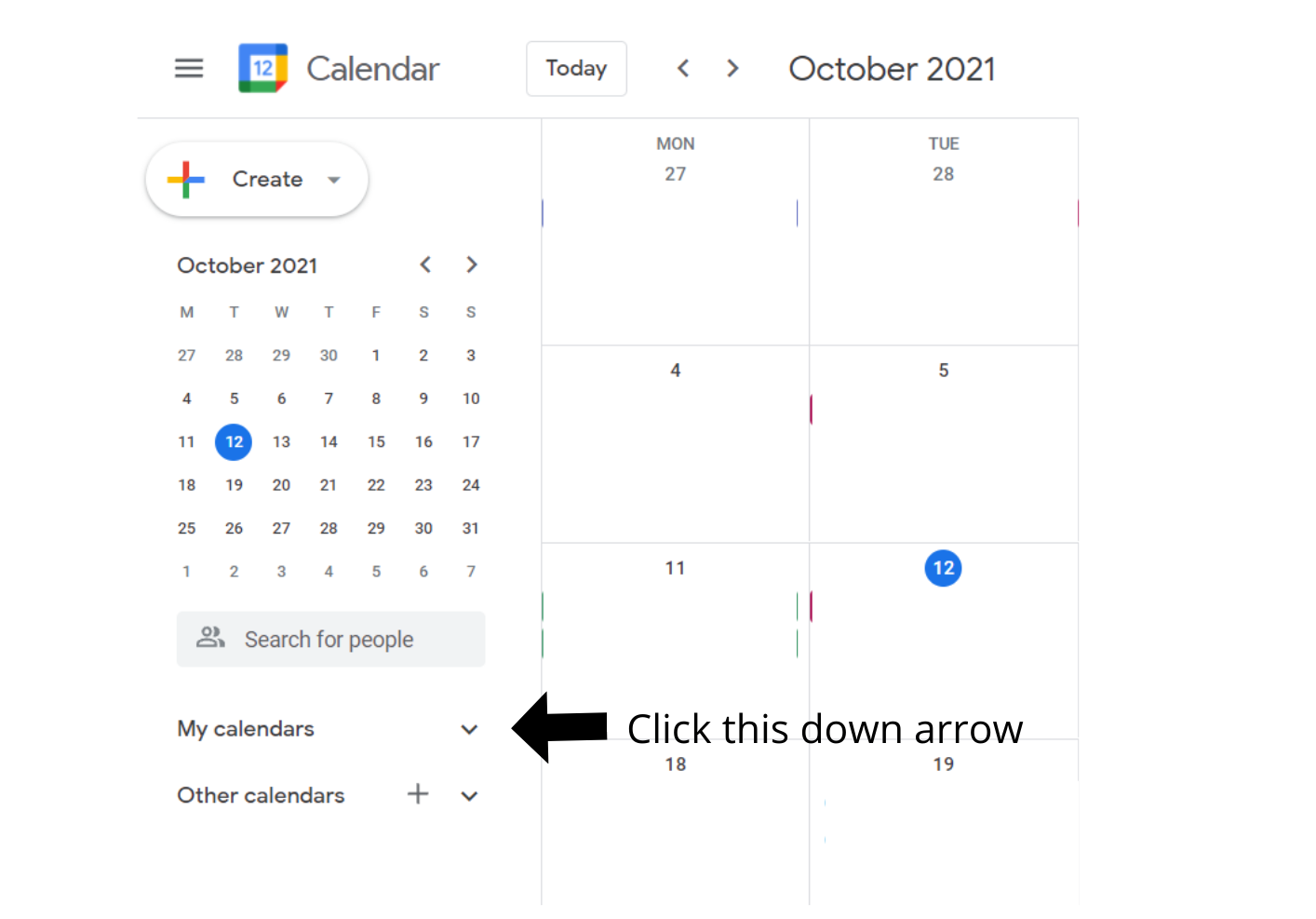
Then, go to the “My calendars” option on the left side of your screen, and click the down arrow to show all your calendars.
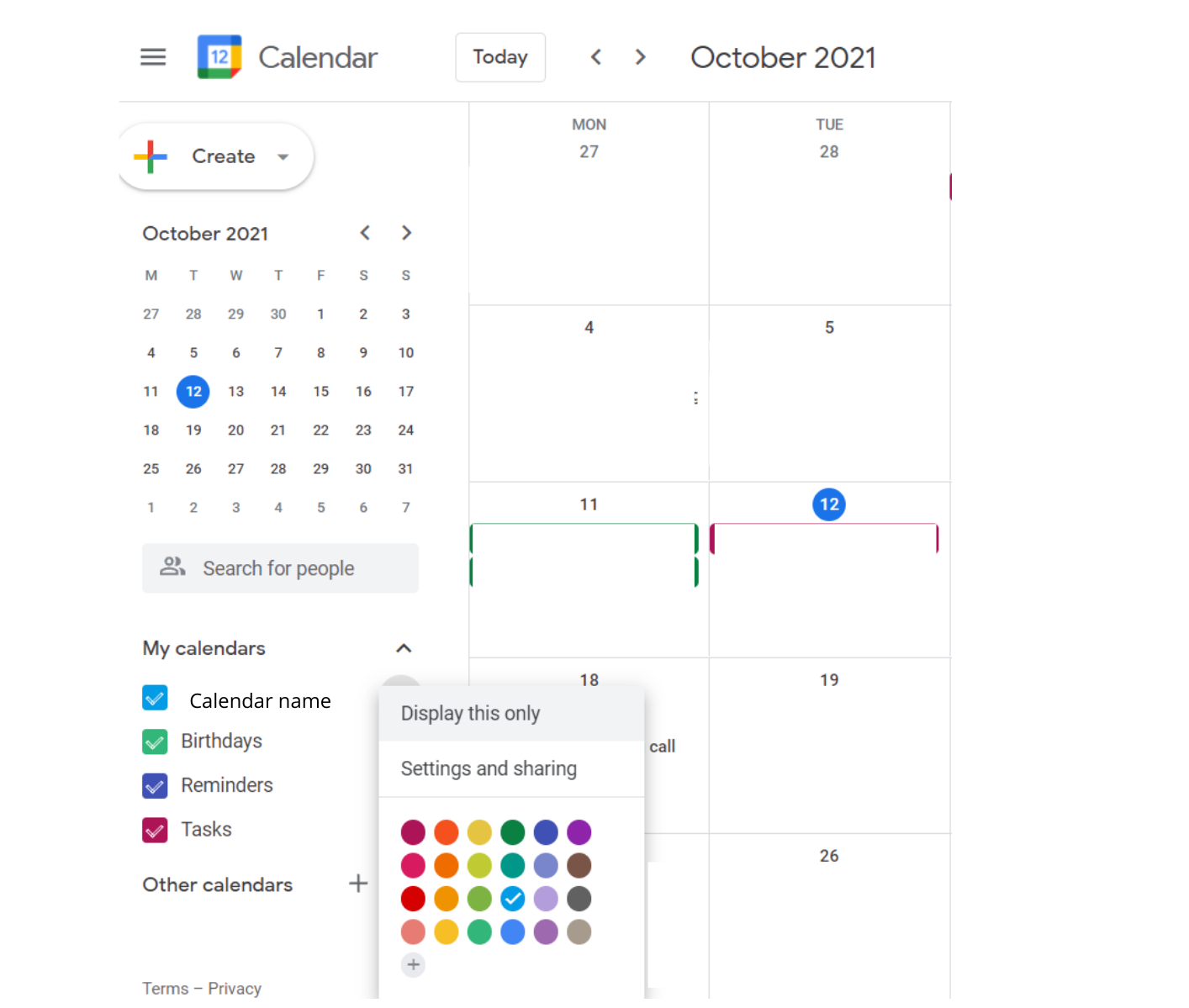
If you hover over the calendar you want to share, you’ll see three dots that you can click on. Then, go to settings and sharing.
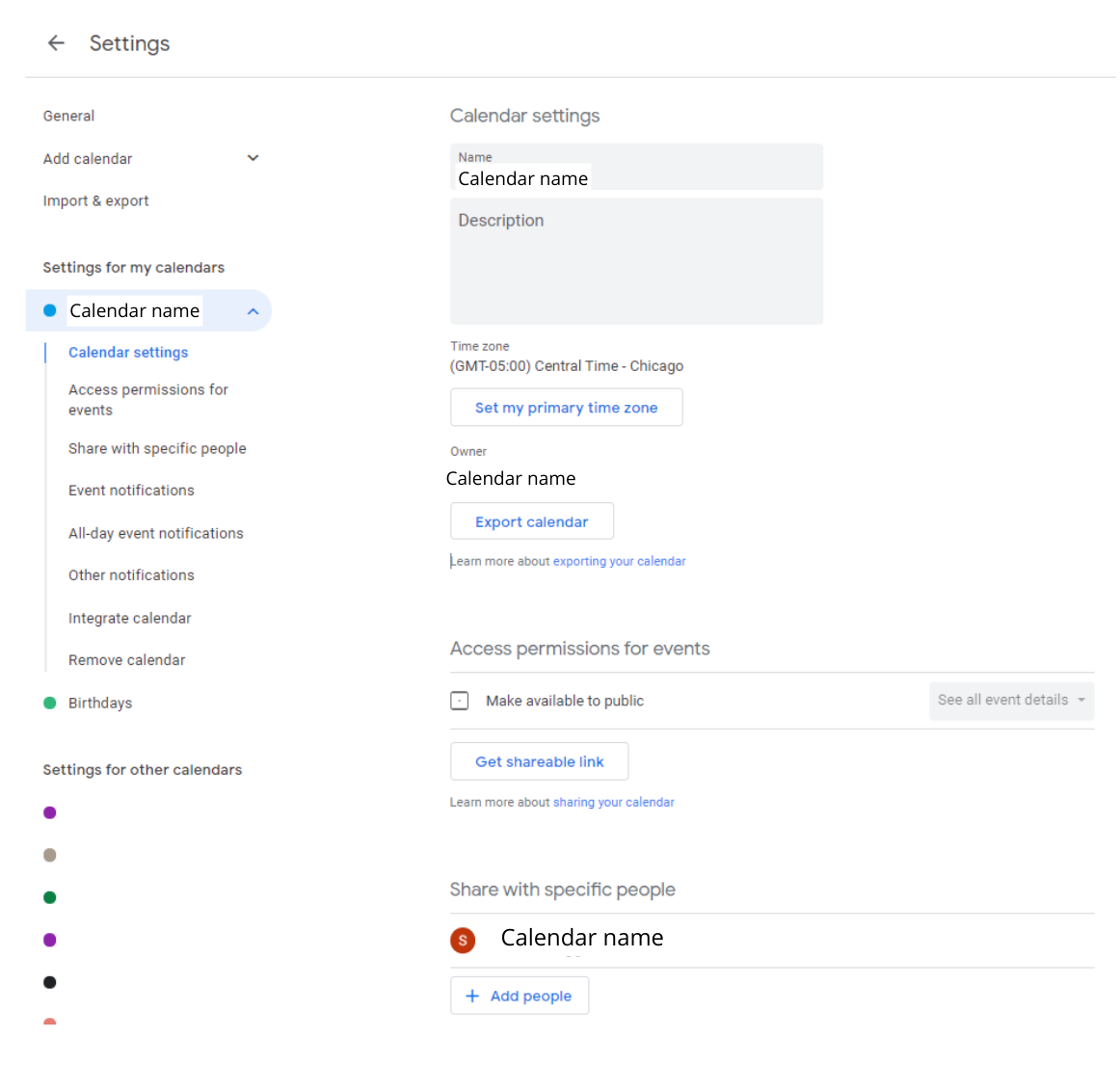
Then, select “Share with specific people” and click ‘Add people.” This will allow you to share your calendar with specific email addresses.
When you click Add people, then enter all the email addresses you want to share your calendar with here and hit ‘Send’ when you’re done.
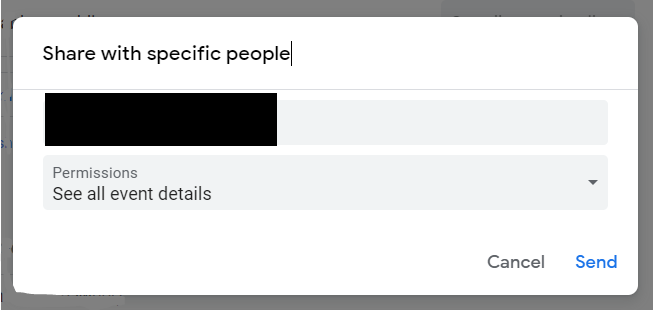
You’ll also have the option to adjust your calendar permissions at this point.
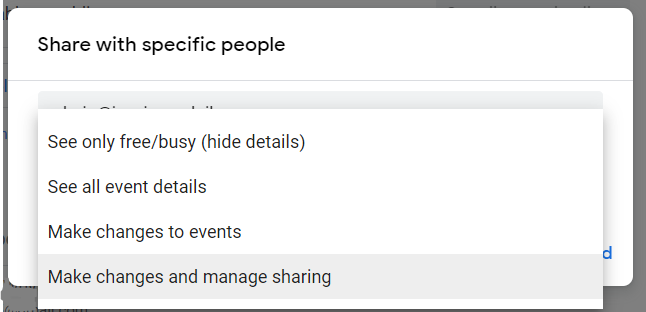
There are four main options, including:
- See only free/busy (hide options): We recommend making this option your default permission settings. This allows people to see when you are free but hides all of your meeting details.
- See all event details: This option works best if a team member needs additional access. They’ll be able to see not only when you are busy, but can also see your meeting details.
- Make changes to events: This setting allows someone to see when you are busy, all of your meeting/calendar details, and they can also make changes at will. Because of this, we recommend only using this option with people who you trust.
- Make changes and manage sharing: This setting allows people to not only have full control over your calendar but they can also add and remove who has access to view it.
Then, after you share your calendar, the recipient will need to click the link emailed to them to add your calendar to their list.
How to share your Google calendar with non-Gmail users
Alternatively, if you don’t care who sees your calendar or you need to share your Calendar with non-Gmail users, you can also choose to make your Google Calendar public.
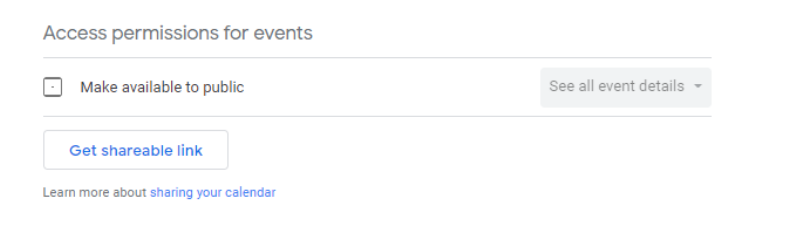
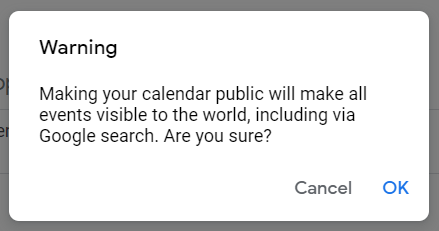
Then, a warning box will appear on your screen, letting you know that your calendar will be public to anyone with the link and technically visible in Google search too.
Then, click get shareable link. You can now share this link with anyone by email, Slack message, etc.
How to automate the process with SavvyCal
Now I suspect if you are reading up to this point, you have more than one Google Calendar. You may even have multiple Outlook, Google, and iCloud calendars that you need to sync and share with people.
That’s where the process of sharing your calendar individually each time becomes more tedious.
With SavvyCal, you can add all of your calendars in one place.
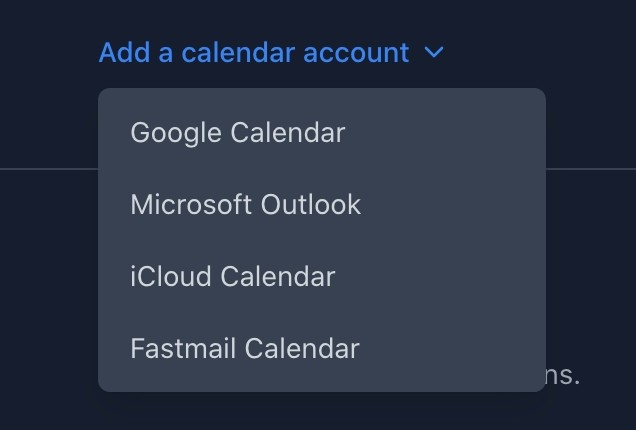
Then, whenever someone needs to see your availability and book time with you, you can create new scheduling links—including personalized ones — in seconds.

You can also configure different availability presets based on individual calendars or scheduling links in SavvyCal. For example, you might want to show more time slots that are available to your direct team.
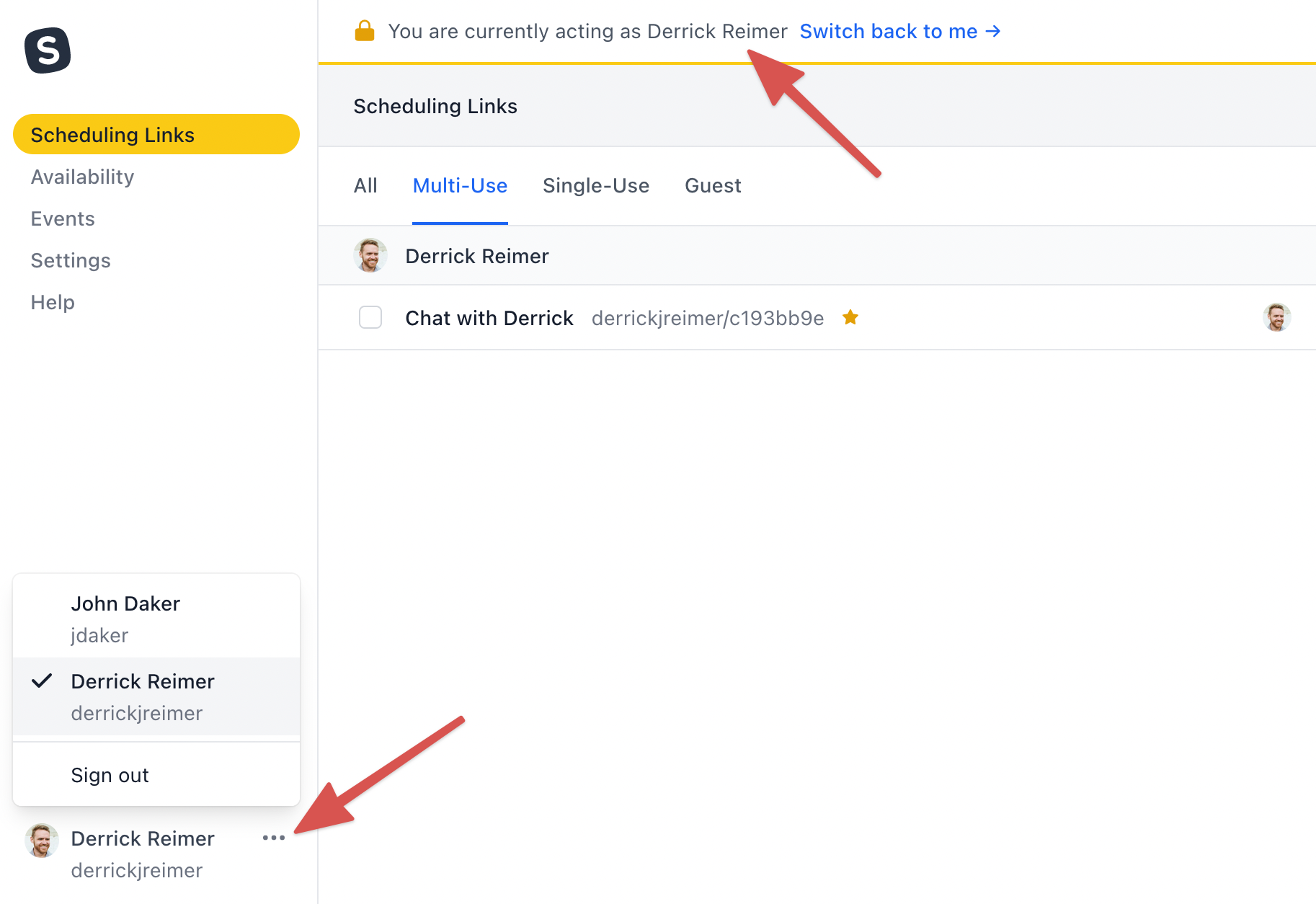
Finally, if you want to delegate your calendar management altogether to your virtual or executive assistant, you can do this with SavvyCal’s premium plan. Then, your VA / EA can manage all of your calendars/availability in one place, scheduling links, account settings, etc.
Calendar invites made easy
In sum, sharing your Google calendar is one of the simplest things you can do to start to take back control of your time.
Ready to simplify your calendar management even first? Start your free trial with SavvyCal.